
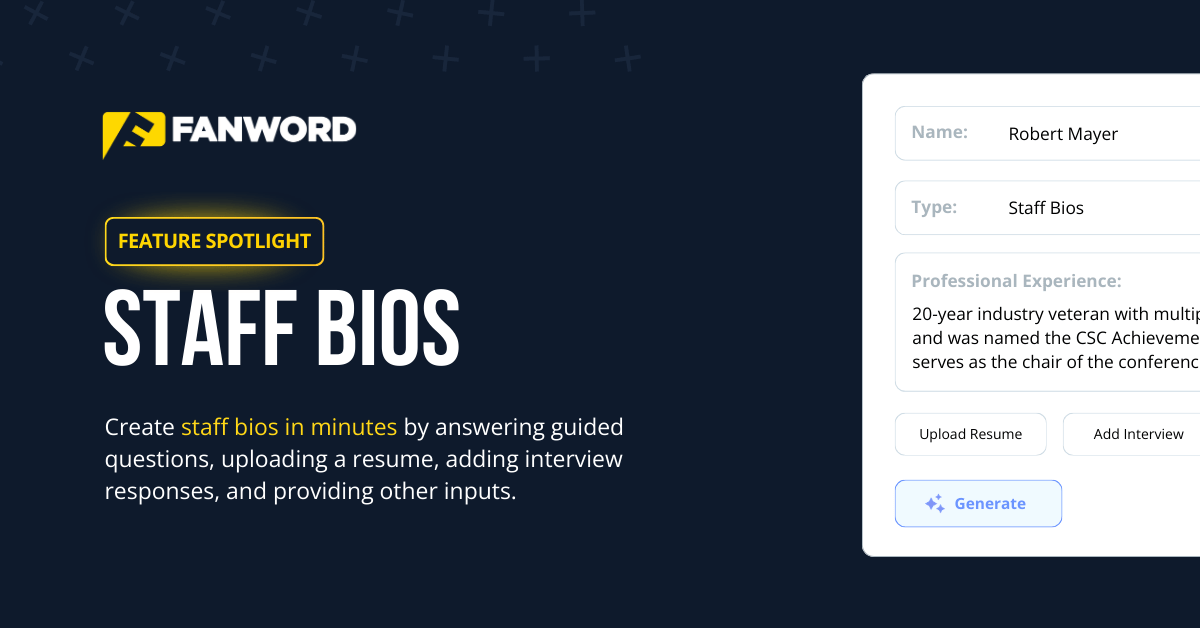
Create staff bios in minutes by answering guided questions, uploading a resume, adding interview responses, and providing other inputs.
February 26, 2026
Student-athletes and coaches are often credited with a program’s success.
But the foundation of that success lies in the dedicated staff working behind the scenes.
Communicators, athletic trainers, academic advisors, gameday staff, equipment managers, compliance officers, and countless others play essential roles that often go unnoticed. They ensure athletes stay healthy, eligible, prepared, and supported both on and off the field.
These people are absolutely critical to the day-to-day operations in college athletics.
And their stories deserve to be — and must be — told, too.
That’s exactly why we’re shining a light on how to easily create Staff Bios with FanWord Assist.
Because anybody who’s played or worked in college sports appreciates the value of their website bio. And we believe that generating clean, professional updates allows your staff bios to stay current, consistent, and off the summer to-do list.
Those tasked with creating and updating website bios are often the same people who are stretched thin. So if you’re looking for one less thing on your plate, let’s check out how you can use the News Stories feature to create Staff Bios inside FanWord Assist.
How It Works
With FanWord Assist, you can generate structured first drafts in minutes to speed up the process of setting up your staff bios. Here’s how it works.
1. Navigate to Staff Bios
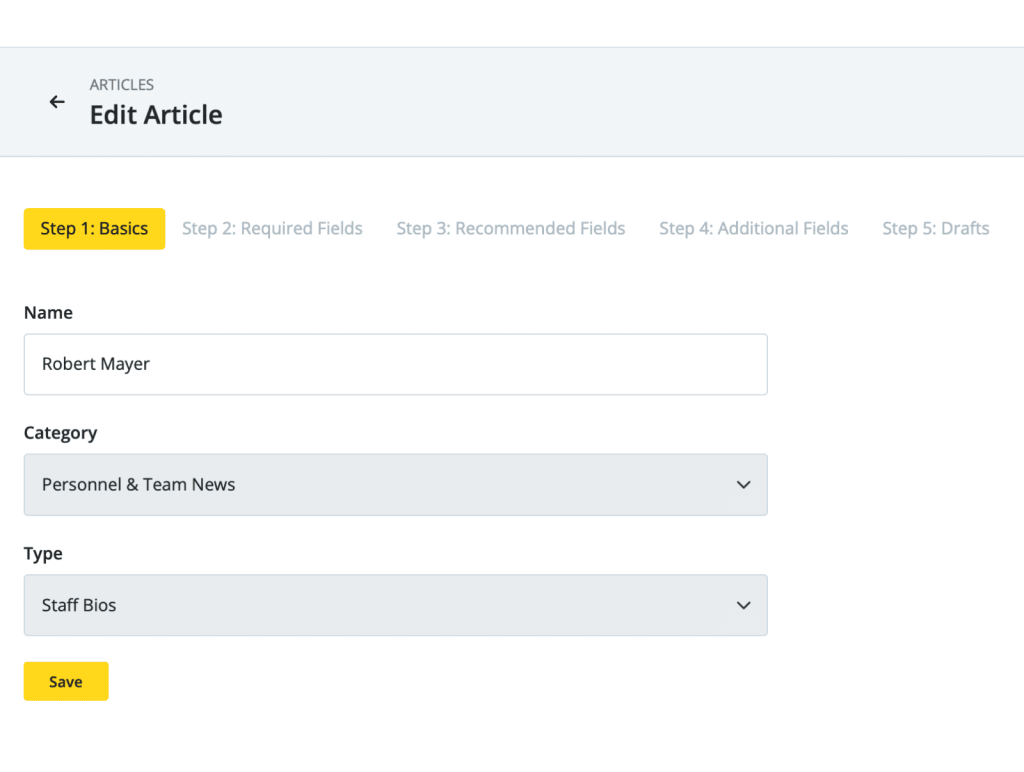
After clicking ‘Add New’ in the ‘News Stories’ tab, you’ll do three things inside of ‘Step 1: Basics’:
- Give the news story a name. In this case, we recommend writing the staff member’s name
- Change the category to ‘Personnel & Team News’
- And change the type to ‘Staff Bios’
2. Add required details
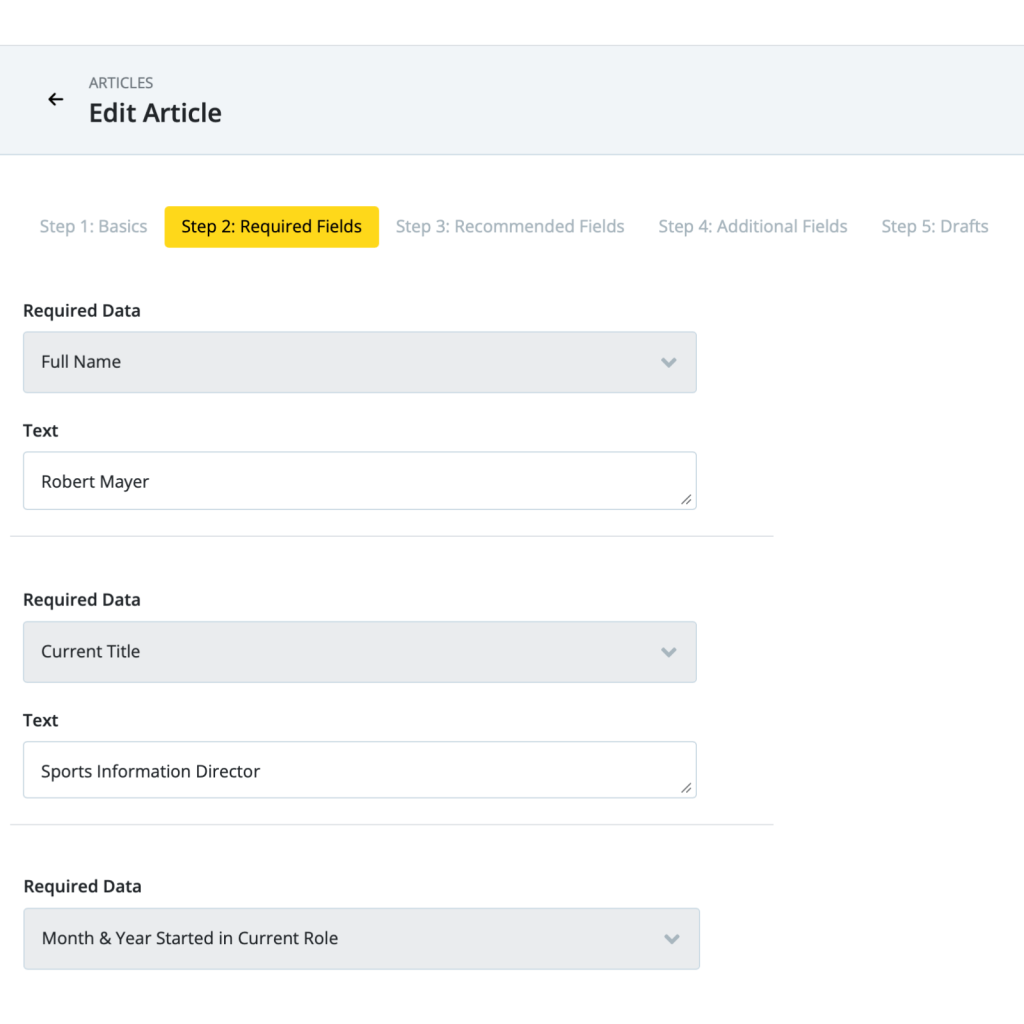
On the next screen, you’ll enter required data for the staff bio:
- Full name
- Current title
- Month and year started in current role
- Primary role responsibilities (1-2 sentences)
3. Add recommended details
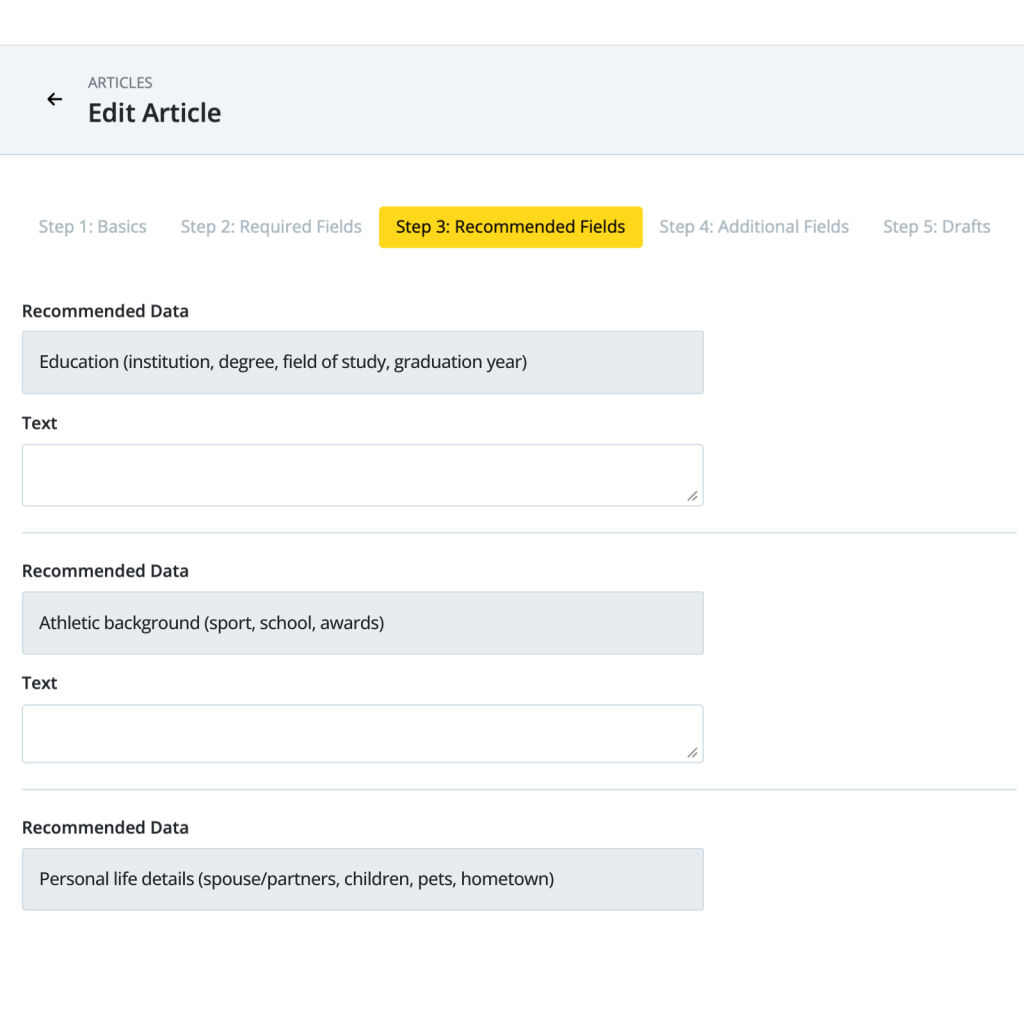
All input fields on this page are optional, but are recommended suggestions to give the staff bio some important context. Simply type or copy and paste content from your notes, websites, or other relevant sources. Some of the approximately ten different inputs include:
- Previous roles & titles within the organization
- Additional professional experience (companies, roles, years)
- Education (institution, degree, field of study, graduation year)
- Athletic background (sport, school, awards)
- Personal life details (spouse/partners, children, pets, hometown)
- Hobbies, interest, and fun facts
4. Add additional details
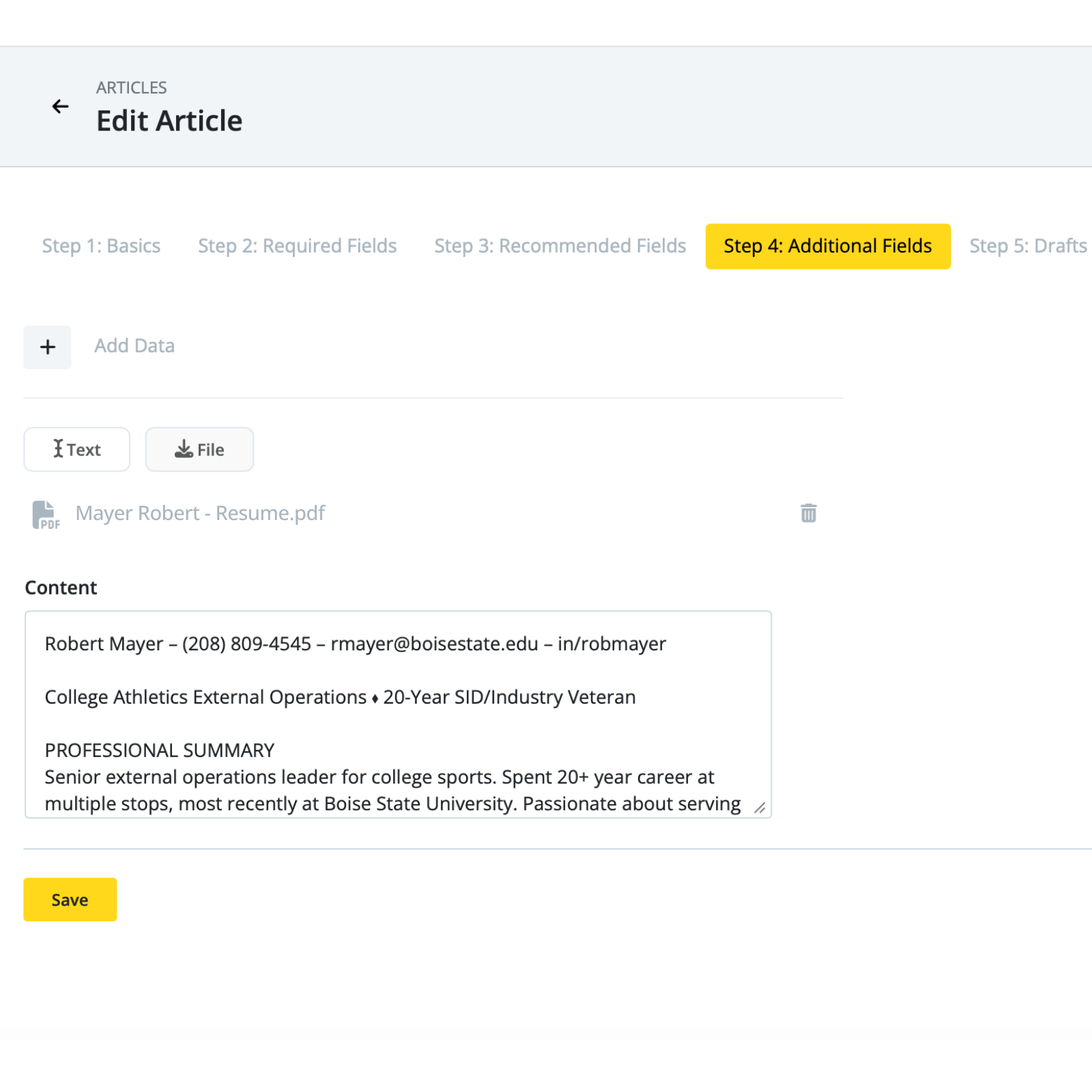
Inside of ‘Step 4: Additional Fields’, you can add file uploads and manual notes for even more context.
File Upload: This upload section allows for PDF uploads, like a staff member’s resume.
FanWord Assist will automatically extract the text from the file and use it to help write the staff member’s bio.
Pro Tip: Uploading a resume will likely answer most of the questions in ‘Step 3: Recommended Details.’ In other words, if you have access to your staff member’s resume, uploading it here may give you enough context to produce the staff bio.
Manual Notes: This section gives you the ability to type or copy and paste any miscellaneous information, like a letter of recommendation that came in the form of an email reply.
Simply title the type of content in the ‘Additional Data’ line (”Letter of Recommendation from Dr. Brooks”) and paste the text into the text field.
5. Generate the draft
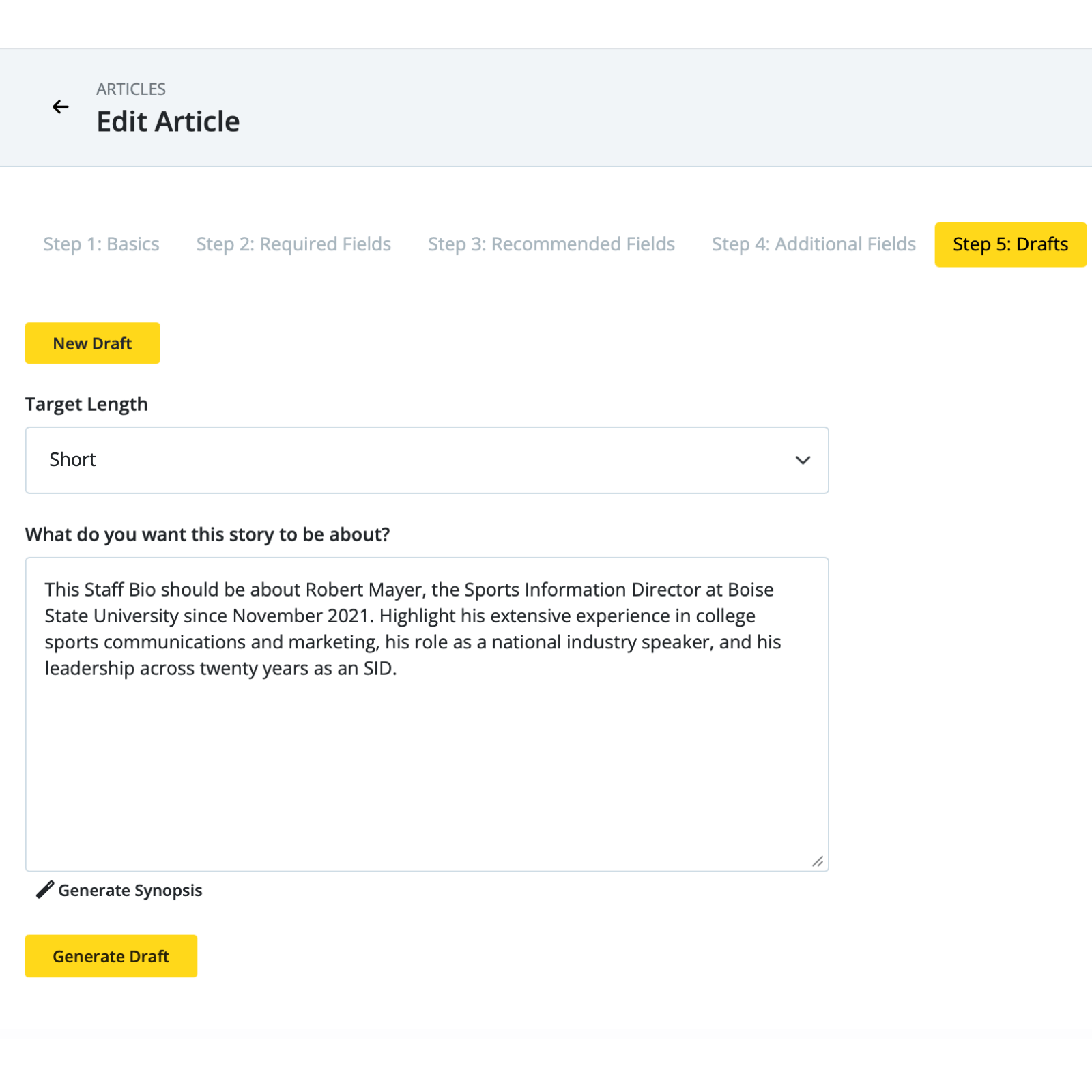
Inside of ‘Step 5: Drafts’ you’ll click the ‘New Draft’ button. From here select a target length— short, medium, or long.
If you want to give our system a bit more direction, fill out the ‘What do you want this story to be about?’ section to hone in on specific details or a theme you want to highlight. Alternatively, you can use the ‘Generate Synopsis’ button that will summarize all your inputs and propose a specific storyline for you.
Click ‘Generate Draft’ to finish the process.
6. Review, edit, and publish
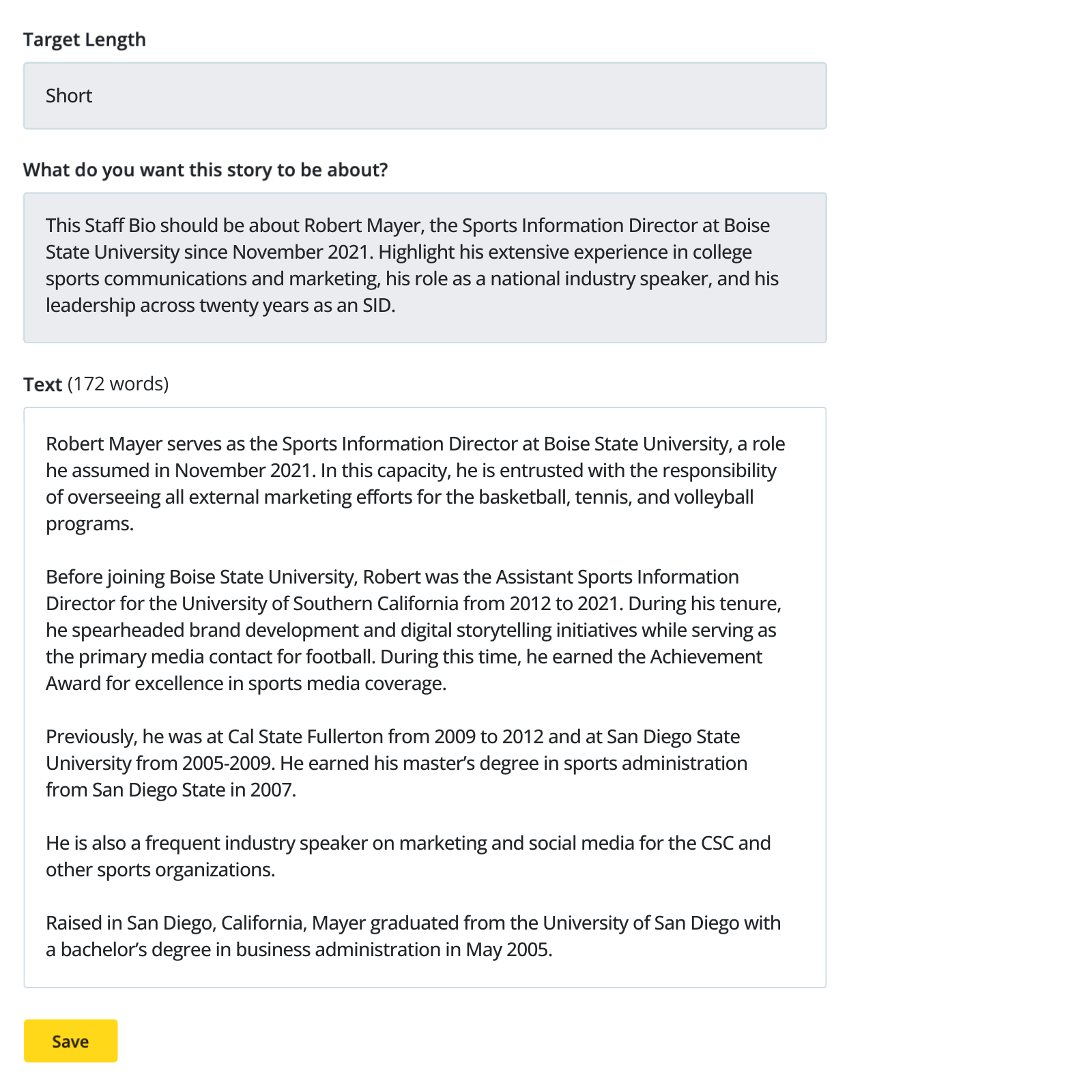
Once the draft is generated, you’ll see a word count and an editable text box that allows you to refine language, confirm facts, align with your internal style, and publish with confidence.
If you want to add more context or simply see another version of the staff bio, you can always generate another draft and work off the one you like best. FanWord keeps track of all your previous versions, to.
And that’s it! You’ve just created a staff bio! 🎉
Import from Online Interviews
If you want to gather all the information for your staff bio from an interview — rather than typing, copying & pasting, and uploading information — you can use our Online Interviews feature.
Send your staff bio-related questions to your staff member and import them directly into the workflow outlined above.
Once you’ve sent your interview questions and received responses, find your staff member inside the ‘Responses’ section and click ‘Review Responses’.

Next, click ‘Promote to News Story’ and select the ‘Staff Bios’ news story type under the ‘Personnel and Team News’ dropdown.
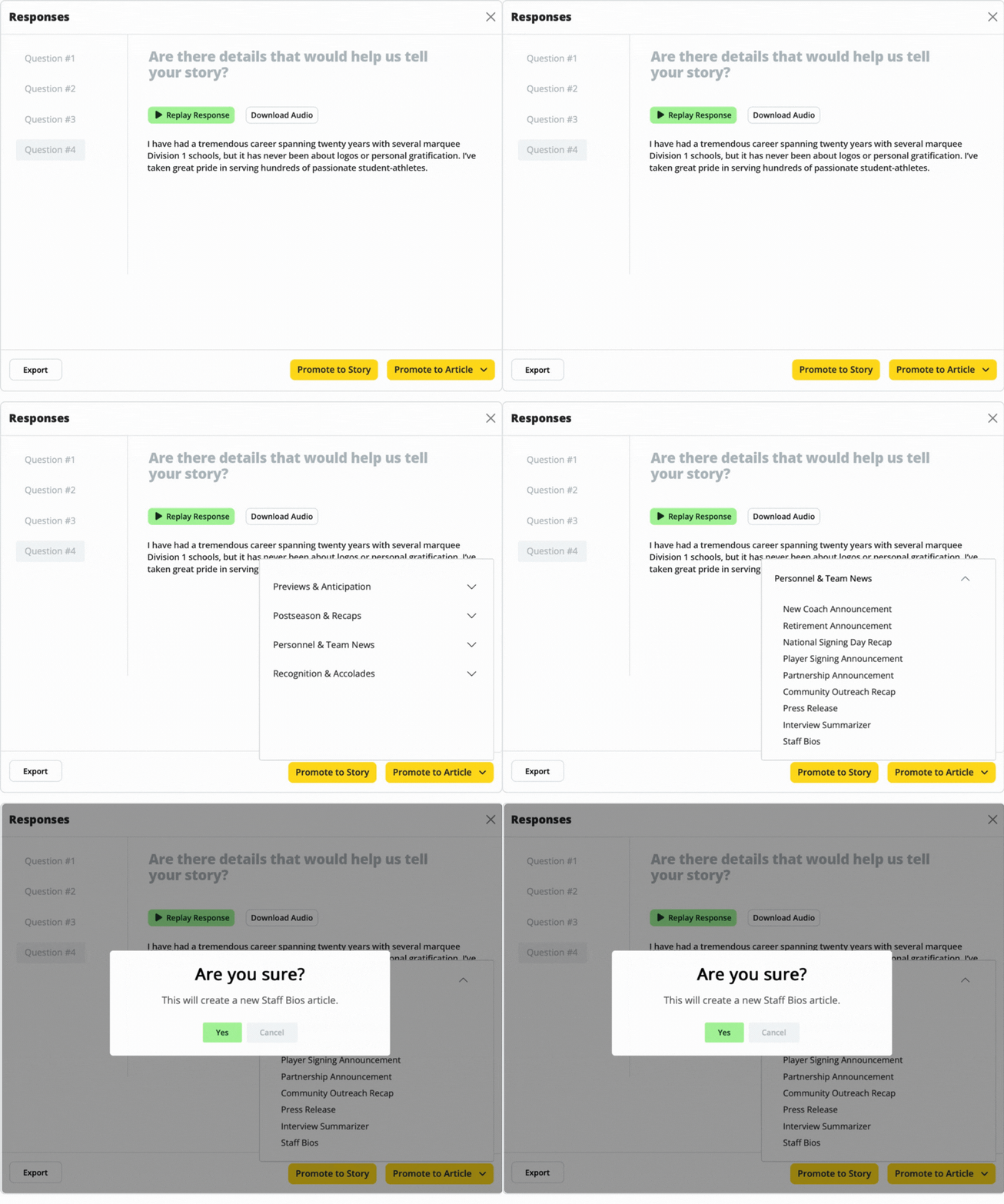
You’ll then see the respondent’s name and the ‘Staff Bios’ news story type listed. Click ‘View’ and then continue with ‘Step 1: Basics’ as normal, proceeding through the process as outlined above.

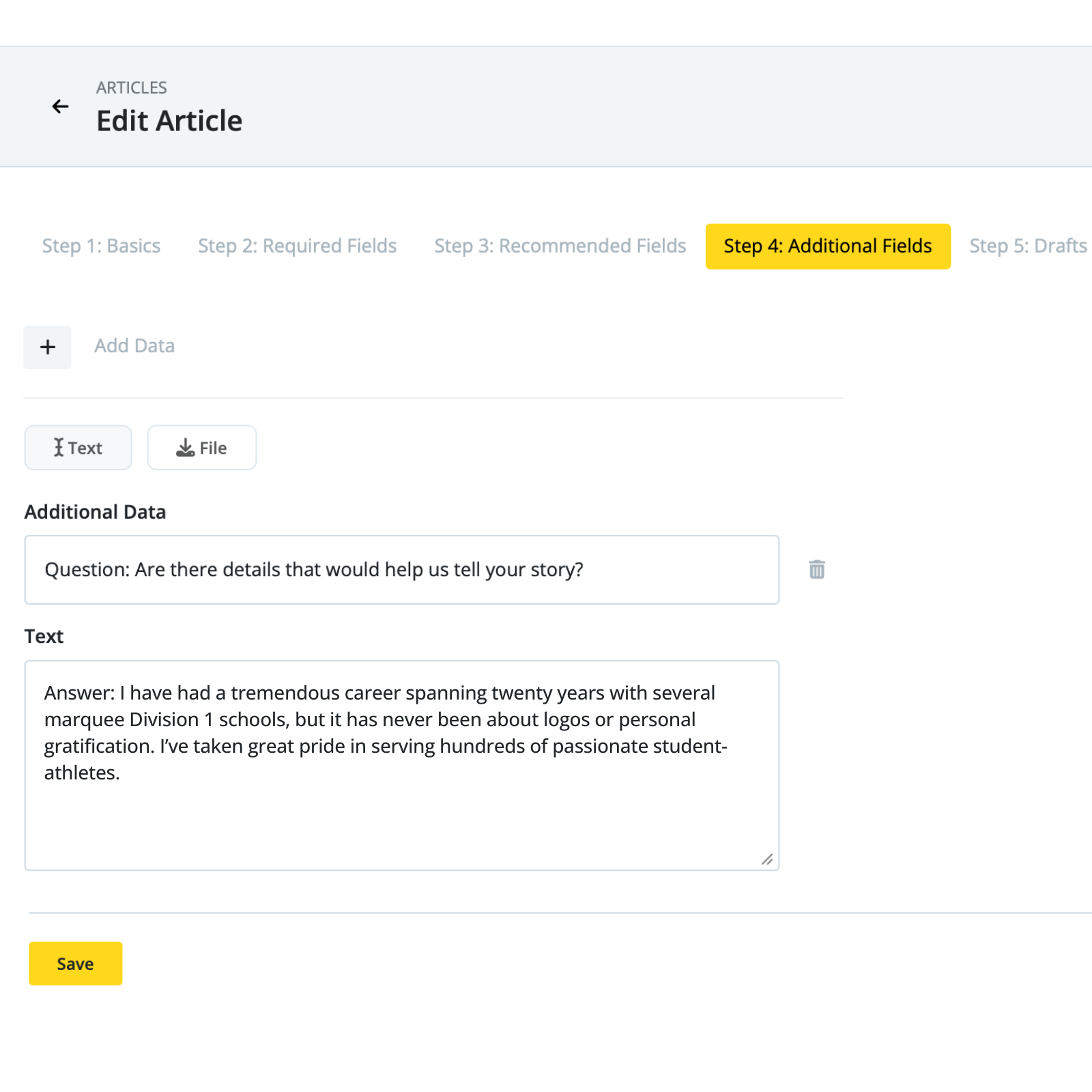
Upon reaching ‘Step 4: Additional Fields’ in the process, you’ll see all questions and answers from the Online Interview transcribed here. The information here is fully editable and single questions can be deleted, too.
Move on to ‘Step 5: Drafts’ to finalize your staff bio.
Why our partners love this feature
Save time at scale
When you need to write multiple staff bios, this feature helps you move quickly without sacrificing quality.
Build a consistent department voice
Standardized structure and tone help your staff pages feel cohesive across all of athletics.
Clear outdated backlogs faster
Instead of “we’ll get to it later,” your team can systematically catch up on profiles that need attention.
Improve how your people are represented
Your staff’s experience and contributions are part of your department’s story. This feature helps you tell it better.
A Better Way to Keep Bios Current
Staff bios are often some of the most visible pages on an athletics site and one of the easiest to push to another day when time is limited. Creating Staff Bios in FanWord Assist gives your team a practical way to keep those profiles accurate without creating extra workload.
You get the speed of smart drafting and the quality of human oversight exactly where it matters and for the hard-working people who deserve it most.
Want to see how Staff Bios fits into your current workflow? Book a quick walkthrough of FanWord Assist and we’ll show you how teams are creating better bios in less time — and lots of other things too.
